
The Other Options section in the Smart Product Sorter app gives Shopify merchants more control over how products are displayed in their collections. It includes additional settings that help improve store layout, prioritize available inventory, and streamline the shopping experience. Below is a breakdown of the available options and how to configure them.
Customization Settings and How to Use Them
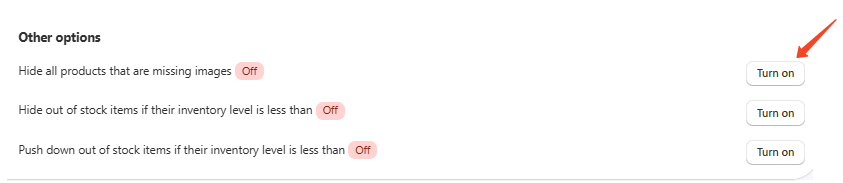
Hide all products that are missing images
This option hides any product that doesn’t have an image. Enabling it helps maintain a clean, professional storefront by ensuring only visually complete products appear in your collections. Simply toggle the setting on or off based on your preference.
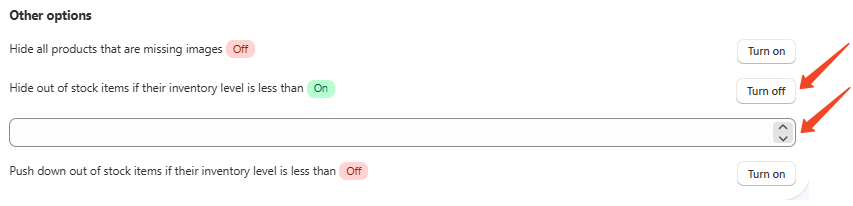
Hide out-of-stock items if their inventory level is less than
This setting automatically hides products whose inventory falls below a defined threshold. For example, if you set the threshold to 5, any product with fewer than 5 units in stock will be excluded from the collection view. A dropdown lets you choose the threshold value (e.g., 1, 5, 10). This option is useful for removing low or no-stock items from the customer’s view
Important: This value must be lower than the threshold used in the next option (Push down out-of-stock items) to avoid overlap..
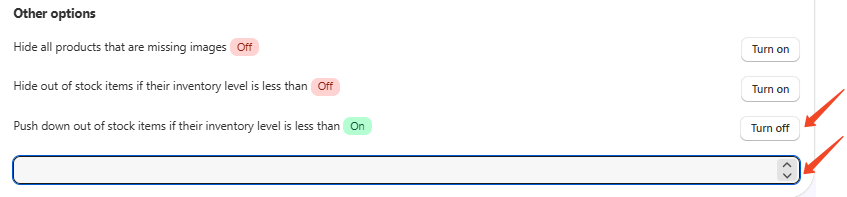
Push down out-of-stock items if their inventory level is less than
Rather than hiding low-stock items, this option pushes them toward the bottom of the collection. It’s ideal for products still available for purchase, such as pre-orders or backordered items. You can set a separate inventory threshold here. For example, push down products with fewer than 10 units in stock. These items will stay visible but appear after more in-stock products.
Example Configuration
If you set:
Hide out-of-stock items below: 5
Push down out-of-stock items below: 10
Then:
Products with fewer than 5 units will be hidden.
Products with 5 to 9 units will be pushed down in the collection.
Products with 10 or more units will retain their normal position.
Why These Options Matter
Improve customer experience: Displaying primarily in-stock products reduces frustration and improves purchase intent.
Keep your store layout clean: Hiding products without images or with zero stock ensures your collections look polished and consistent.
Highlight availability: The push-down feature helps lower-priority items remain visible without overshadowing fully stocked products.